
Sharing a WhatsApp link should be easy. But for many people, it isn’t. Some users copy the wrong thing. Others share a link that opens WhatsApp but doesn’t join the group. And many don’t even know WhatsApp gives you a proper share link in the first place.
I’ve helped a lot of people with this, and the pattern is always the same. They aren’t doing anything wrong — WhatsApp just hides these options in places most users never look.
Most people I’ve helped struggle with this because WhatsApp hides the important settings in places you wouldn’t expect.
This guide explains how to share a WhatsApp link the right way — whether it’s a group, a direct chat, or a channel — and also shows how platforms like GroupsOP.com make sharing much easier and safer.
How to Share a WhatsApp Group Link (Official Method)
This is the most common situation. You have a WhatsApp group, and you want others to join.
Step 1: Open the WhatsApp Group
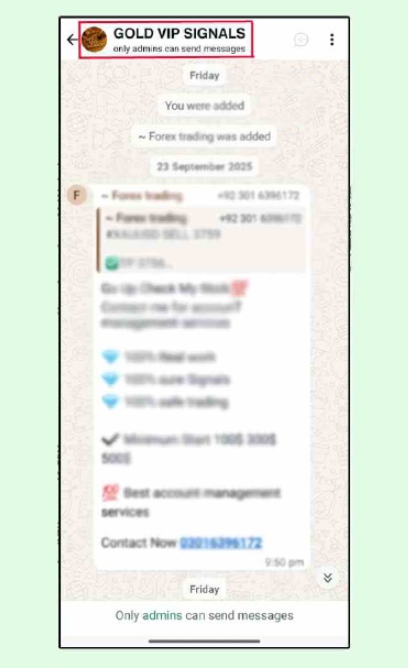
Open WhatsApp and tap on the group you want to share.
This matters because WhatsApp only lets you create a group link from inside the group itself.
Common mistake:
People try to share the group from the main chat list. That option doesn’t exist.
Practical tip:
If the group doesn’t load properly, close WhatsApp and reopen it. This fixes small bugs for many users.
Step 2: Open the Group Info Page
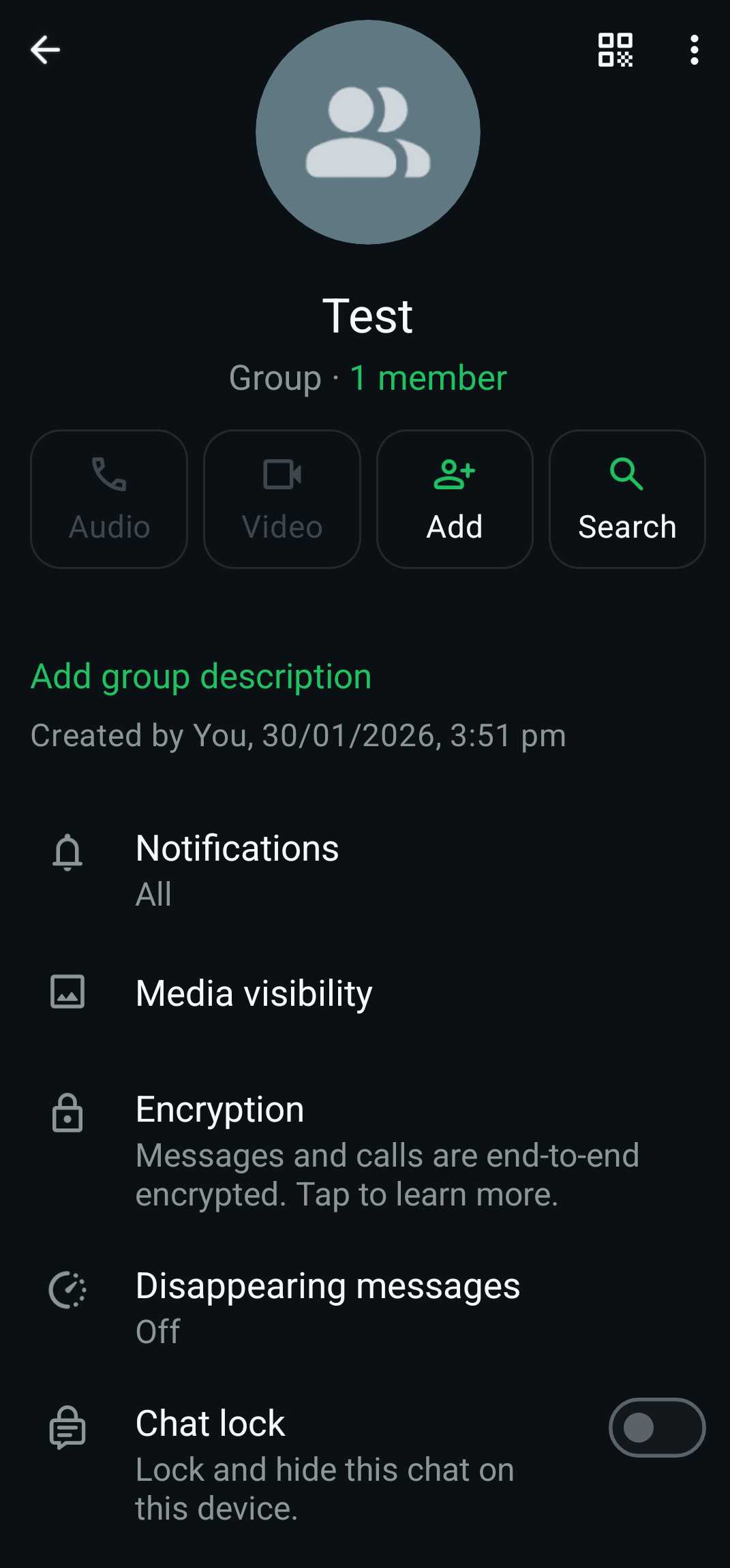
Tap the group name at the top of the screen.
This opens the Group Info page where WhatsApp hides all admin and sharing options.
Why this matters:
The invite link is not in the chat menu. It’s only inside Group Info.
Common mistake:
Tapping the three dots menu instead of the group name.
Step 3: Tap “Invite via Link”
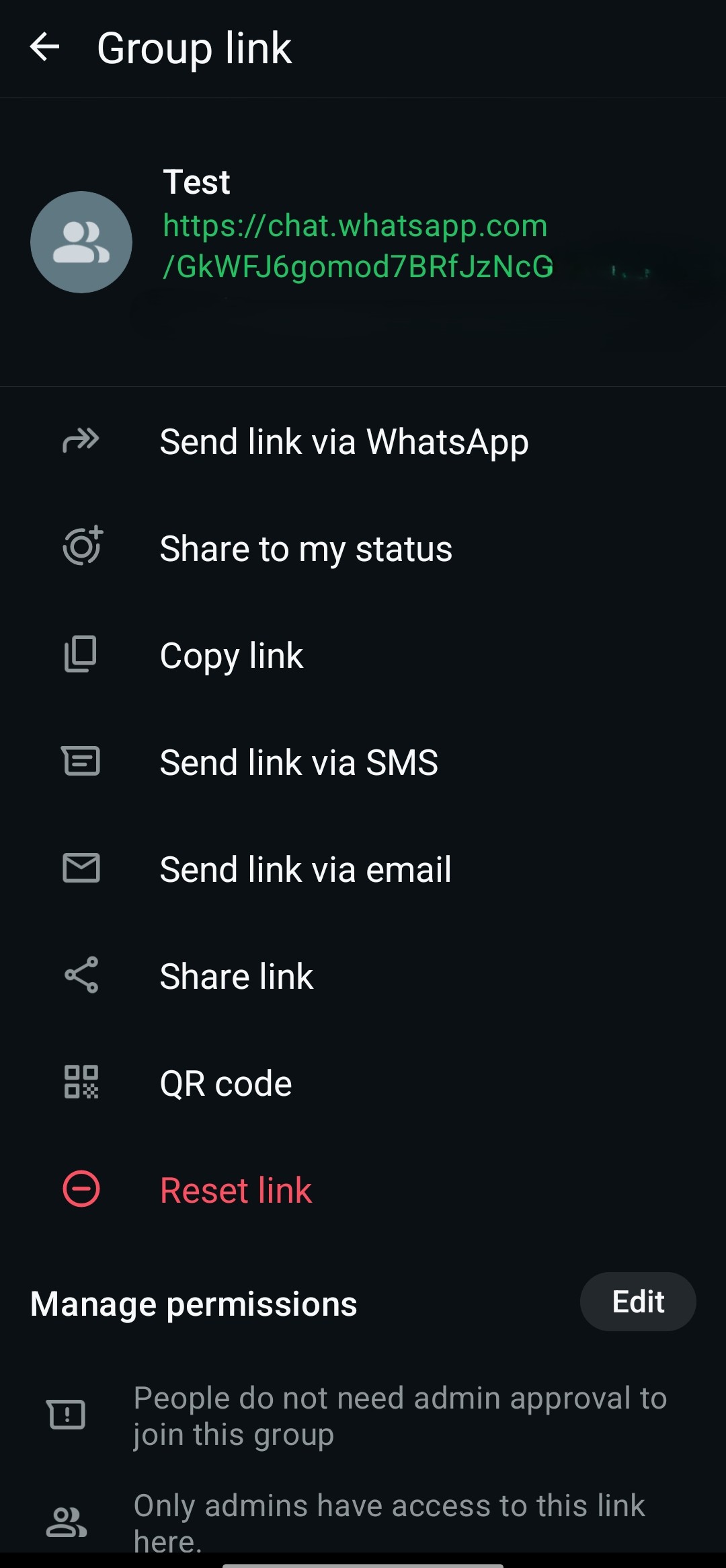
Scroll down and tap Invite via Link.
WhatsApp now shows the official group join link.
Why this matters:
This is the only correct link others can use to join your group.
Common mistake:
Sharing screenshots or forwarding old messages instead of the link.
Real tip:
If the link stops working, tap Reset Link and share the new one.
Step 4: Share or Copy the Link
You can now:
- Copy the link
- Share it directly
- Generate a QR code
Use Copy Link if you want to paste it on websites, blogs, or platforms like GroupsOP.com.
How to Share a WhatsApp Chat Link (Without Creating a Group)
Sometimes you don’t want a group. You just want people to message you.
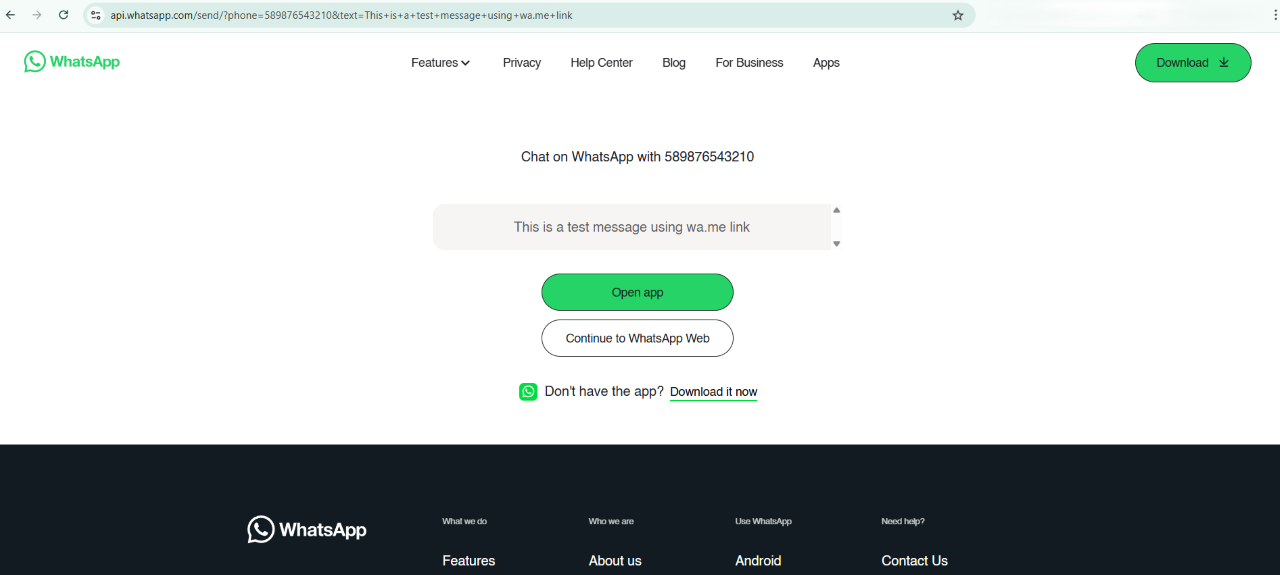
WhatsApp supports this using a simple chat link.
The Official Format
https://wa.me/YourPhoneNumber
Example:
https://wa.me/589876543210
Include:
- Country code
- No spaces
- No symbols
Common mistake:
Adding “+” or spaces. That breaks the link.
How to Share a WhatsApp Channel Link
WhatsApp Channels work a bit differently, but sharing is still simple.
- Open the WhatsApp Channel
- Tap the channel name
- Choose Share Channel or Copy Link
- Share the link anywhere you want
Channel links are public by design, which makes them perfect for promotion.
⭐ How to Share Your WhatsApp Group or Channel on GroupsOP.com (Recommended)
If you want more people to find your WhatsApp group or channel, sharing it only in chats isn’t enough.
This is where GroupsOP.com becomes very useful.
GroupsOP.com is a public directory where people actively search for WhatsApp groups and channels by:
Step-by-Step: Share on GroupsOP.com
- Open https://groupsop.com/submit
- Paste your WhatsApp group or channel link
- Select a category (Education, Business, Entertainment, etc.)
- Choose country and language
- Add tags and a short description (Optional, but if you add then it can reach targeted viewers)
- Click Submit
That’s it.
Your group or channel:
- Goes live instantly (if not prohibided content.)
- Requires no review (if prohibided content related group or channel submited then requires review and maybe rejected.)
- Becomes visible to everyone.
Why this matters:
Instead of sending links one by one, GroupsOP lets people find your group naturally through search.
This works especially well for:
Common Mistakes and Easy Fixes
-
Link not opening
Cause: Extra space or symbol
Fix: Copy again and test -
People can’t join group
Cause: Group is full or Link Revoked
Fix: Remove inactive members or check status -
Invite option missing
Cause: Not an admin
Fix: Ask admin to share -
Sharing wrong link
Cause: Copying group name
Fix: Use “Invite via Link” -
No new members joining
Cause: Link shared only privately
Fix: Share on GroupsOP.com
Yeah, this one happens a lot.
FAQs
Can I share WhatsApp links on websites?
Yes. Group, chat, and channel links work on websites and blogs.
Do WhatsApp group links expire?
No, unless the admin resets them.
Is it safe to share a WhatsApp link publicly?
Public links can attract spam. Use platforms like GroupsOP that allow reporting.
Can I share both group and channel links on GroupsOP.com?
Yes. GroupsOP accepts both.
Do I need to pay to share links on GroupsOP?
No. It’s free.
Related Blogs
- How to Submit WhatsApp Group or Channel Link Instantly — Share Your Group or Channel on GroupsOP
- How to Get QR Code for WhatsApp Group in 2025 (Step-by-Step Guide)
- What is GroupsOP.com and How It Helps You Join WhatsApp Groups & Channel
- Create a WhatsApp Group and Share on GroupsOP in 2025
Final Thoughts
Sharing a WhatsApp link isn’t complicated — it’s just hidden.
Once you know where WhatsApp keeps these options, everything becomes easier. And when you combine that with platforms like GroupsOP.com, sharing stops being manual work and starts working for you.
Honestly, once you understand how this feature works, everything else in WhatsApp starts to make more sense.